Category: Uncategorized

  • How to build Reader’s Web

    At first glance, Reader’s Web may seem like something that would require new browser features and years of standardization work. But it doesn’t.

    We can start building Reader’s Web today without waiting for browser vendors to support its document formats. In this article, I’ll explain how.

    Sub-webs

    The Web is a collection of all web pages. Originally, it consisted only of HTML pages. Over time, other document types were added. For example, PDF documents. A PDF document behaves like a web page: it can be viewed in a browser, and it can contain clickable links. Another document that behaves similarly is a standalone SVG image.

    A collection of documents of a particular type can be called a sub-web. We can talk about a “PDF sub-web” or an “SVG sub-web,” although such terms are not particularly useful.

    More interesting are the sub-webs we can create on the Reader’s Web. I call them static sub-webs because documents on the Reader’s Web are static—that is, they don’t contain scripts. Currently, the Reader’s Web includes the following document types:

    • HDOC (an HTML-based document containing an article)
    • CDOC (SVG-based collage document)
    • CONDOC (a connections document that allows the main document to be loaded from another URL)
    • Static comments (a JSON feed of comments that can be used in HDOCs)

    In the future, other document types may be added—for example, timelines or walkable 3D scenes. You can turn almost any application into a web of documents.

    Since in this article we are exploring how to build a sub-web, we don’t need to look into every document type that currently exists or may be added in the future. So, in this article I will focus only on HDOCs, using them to illustrate how sub-webs can be constructed.

    Recipe for creating a static sub-web

    Anybody can create sub-webs. The question is: once you create a new document type, how do you get browsers to support it? It turns out that you don’t have to.

    There is a way to introduce a new document type and popularize it on the Web without browsers explicitly supporting it. If it becomes popular enough, browsers may eventually start supporting it directly. But that support is not strictly necessary for the document type to be useful.

    Let me explain how it can be done using HDOC as an example.

    Step 1. Define the document type

    Define the new document type as if you expect browsers to support it. Now you have the document, but browsers don’t know how to render it.

    Step 2. Create a client app

    Create a client application—preferably a browser extension. You could create your own browser, but it’s much easier to create an extension focused on supporting the new document type while letting the existing browser handle everything else. It’s also easier to convince people to install an extension than to switch to a new browser.

    Now people with the extension can view HDOCs. The problem is that they are a tiny minority of all browser users. Most people don’t have the extension installed, so when they open an HDOC they’ll only see its source code. What’s worse, website owners will be reluctant to publish such documents because they won’t be readable for most visitors.

    Step 3. Define an embedded version

    Define an additional, hybrid version of the document. I call it an Embedded HDOC because it is embedded in a normal HTML page.

    Of course, you don’t simply add an entire HDOC containing the same content to an existing HTML page. Instead, you annotate the content of the HTML page and store all the additional information in JSON format. This allows the same URL to serve both formats. People with the extension installed will see an HDOC. Everybody else will see the original HTML page.

    So, we no longer have pages that appear as raw source code to most people.

    That leaves only one problem. If you, as a website owner, use new features such as visible connections, they’ll be available only to people who have installed the extension. That means you’d have to tell your readers something like:

    “To see the visible connections on this page, you need to install this browser extension.”

    For many website owners, that may be a deal breaker.

    Step 4. Serve Reader UI from your server

    Instead of relying solely on the browser extension, websites can serve the Reader UI themselves. This way, everyone gets the full functionality without being asked to install additional software.

    Such a page should also contain an Embedded HDOC in case someone wants to use the extension or load the page as a connected document next to another document.

    In the end, all you need is a browser extension and some server-side code.

    For HDOCs, the extension can be downloaded here. As for the server-side code, I’ve developed a WordPress plugin that you can find here.

    Circumventing browser restrictions

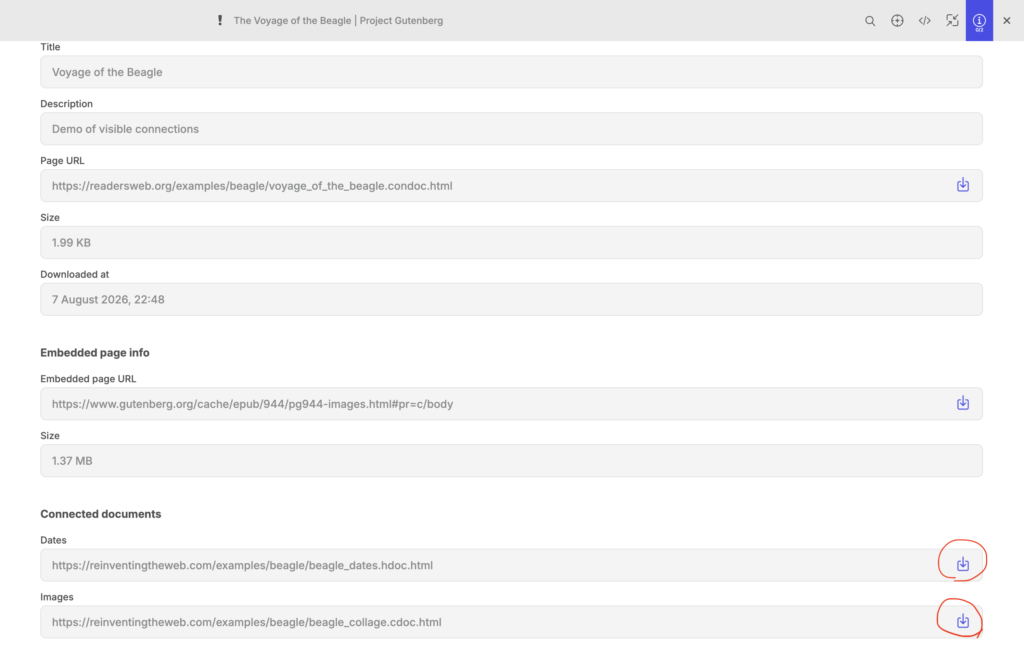
    On the Reader’s Web, you can connect pages to other pages and display visible connections between specific parts of their content. That means the main page must be able to request the connected page.

    If the connected page is hosted on another website, you can’t request it directly because browsers block such cross-origin requests. There are a couple of ways to work around that restriction.

    With the browser extension, you route the request through a background script. The background script is exempt from the browser’s cross-origin restrictions. You do, however, need to take measures to prevent a malicious web page from hijacking the background script which I have already done in my extension.

    When the Reader UI is served from the server and the extension is not used, you can instead use a proxy endpoint to forward requests to other websites.

    In that case, you need to make sure that other people can’t use your endpoint as a tunnel to request arbitrary URLs. In my plugin, the frontend sends not only the target URL but also the URL of the current page. The server then checks whether the current page lists the target URL among its outgoing connections. Only if it does is the request forwarded to the other website.

    Is it safe?

    Circumventing browser restrictions may seem dangerous. After all, those restrictions exist for a reason.

    In this case, however, we can make it safe.

    Browsers restrict scripts from reading data from other websites because those scripts are written by unknown authors and cannot be trusted to make requests on your behalf or access information from other origins.

    An HDOC, however, contains no scripts. The code that renders it is trusted code. Today, that code is provided by the browser extension. In the future, it could be built directly into the browser itself.

    The safety of this approach therefore depends on how thoroughly the document content is sanitized before it is rendered. I have designed both the browser extension and the WordPress plugin with security in mind and have made them as safe as possible to the best of my knowledge. As with any software, if security issues are discovered, they can be addressed in future updates.

    Server plugin

    Some document types, such as HDOC and Embedded HDOC, can be created manually and published as files on any website. However, server plugins can make adopting these new document formats much easier.

    Currently, there is one such plugin for WordPress sites: Static Web Publisher. It allows you to serve your existing pages as hybrid pages. If a visitor has the browser extension installed, those pages are automatically rendered as HDOCs. Otherwise, visitors see the original HTML pages.

    Alternatively, you can serve your pages with Reader UI. In that case, everyone gets the Reader’s Web experience, regardless of whether they have the browser extension installed.

    Everybody gets what they want

    This approach gives everyone exactly what they need.

    A reader only has to install the browser extension to get the full Reader’s Web experience, including the ability to configure the theme for all supported documents.

    A website owner who uses visible connections wants to be sure that everyone will see those connections, regardless of whether they have the browser extension installed. Serving the Reader UI from the server makes that possible.

    And if a website owner simply likes the main idea of the Reader’s Web and wants to delegate the choice of the website’s theme to the reader, they can enable an option in the Reader UI that displays an informational popup explaining the Reader’s Web. Readers who find the idea interesting can then install the extension.

    To readers who aren’t familiar with the Reader’s Web, it will simply look as though many unrelated websites happen to use the same theme. Until browsers start supporting the Reader’s Web natively, you have to use some theme on your website whether you like it or not.

    Who can create static sub-webs?

    Because browser support is not required, anybody can define new document types and use the above “recipe” to create static sub-webs.

    You can turn any app into a web of documents. Take for example this web app that shows historical events on an interactive timeline. Here is a video that shows the timeline in action.

    The timeline, with its navigation, can be moved to a browser extension and a server plugin. A couple of web page document types can be defined for folders and layers of historical events. Currently, that information comes from the website’s database, but it can come from documents published on many different websites.

    And you can do so with almost any app. You just need to find a use case where turning an app into a web of documents makes sense. We don’t need to be too cautious. You can think of it as throwing things at a wall to see what sticks. Some of those document formats may become popular enough that eventually browsers may start supporting them directly. But even if that never happens, it doesn’t necessarily mean that those particular document types have “failed.” You can have niche sub-webs that are useful for some people but are never directly supported by browsers.

    What about browser support?

    While we don’t require browser support for the new document formats, we actually do want browsers to start supporting them at some point in the future. It will simplify a lot of things.

    For example, website owners won’t need proxy endpoints to circumvent browser restrictions when downloading a connected document from another website. That will make requests much faster, and the owners of the websites you request connected pages from will see your information in their analytics instead of the proxy server’s.

    The browser extension won’t be needed anymore.

    Server-side code will be simplified because you won’t need to serve the Reader UI from the server anymore.

    In the future, “forced” versions of embedded documents will become obsolete as well.
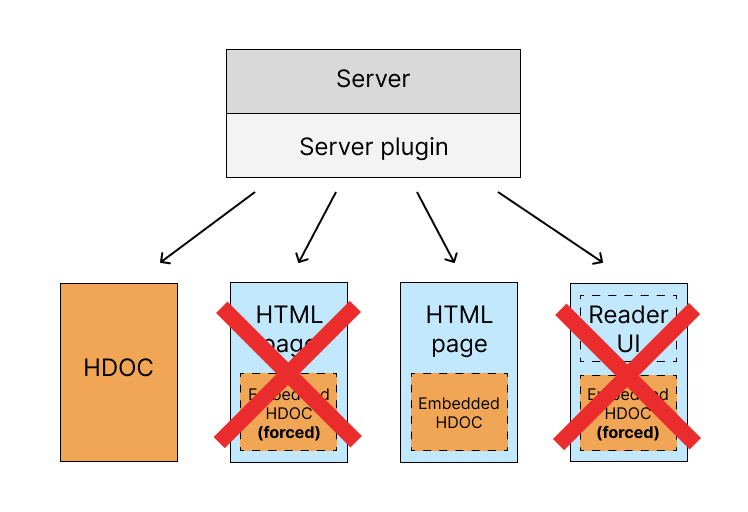
    In the future “forced” versions of embedded documents will become obsolete

    Around the time browsers start supporting Reader’s Web, content management systems like WordPress may start supporting it as well. At some point, you won’t need a server plugin or any special software at all. HDOC will become a first-class citizen of the Web.

    But for all of that to happen, we need all mainstream browsers to support Reader’s Web. Not some of them. Not most of them. All of them. If there is a noticeable percentage of people who can’t view standalone HDOCs because their browsers don’t support them, website owners will not start switching to standalone HDOCs and will continue using Embedded HDOCs and the Reader UI. And for any browser company that goes through the trouble of implementing support for Reader’s Web, it may seem that they have just wasted their resources on something pointless because nobody uses HDOC — the document format they have just started supporting.

    So achieving native browser support of Reader’s Web document formats is tricky. But the good news is that, as I said earlier, while we do want browsers to support Reader’s Web, we don’t need that support.

    If you focus on functionality, you will see that browser support won’t add any new functionality. If there is any functionality you think is missing from Reader’s Web, we can add it. Browser support will make things simpler, faster, and cleaner. But it won’t add any functionality that we can’t add ourselves.

    Problems we don’t need to worry about

    If you want to have a blog without having to worry about its design, or if you want to use visible connections between documents, it shouldn’t matter to you how popular or unpopular Reader’s Web currently is.

    The “network effect” is not important for the adoption of Reader’s Web document formats. It is important in other scenarios. For example, if you start a brand-new social media platform, you may fail to get enough users simply because people don’t want to join an empty social network.

    This is not the case with Reader’s Web. For a website owner, Reader’s Web is all about the new functionality it provides. And when you install all the required software, you get that functionality regardless of how many websites support Reader’s Web document formats.

    What we still need to work on

    Reader’s Web is by no means a finished project. Just as the World Wide Web has continued to evolve throughout its history, Reader’s Web will evolve as well. After revising the document formats several times, I believe they have now reached a stable foundation. Future changes should be additive rather than breaking existing documents.

    Here are a few areas I plan to work on as time permits.

    Coverage

    We have a WordPress plugin, but we don’t yet have plugins for other content management systems. That’s not a conceptual problem. It’s not that we don’t know what to do, and it doesn’t require permission from browser vendors. It’s simply a matter of doing the work.

    Once I see traction with the software we currently have, I plan to build similar tools for other platforms, not just WordPress.

    Features for blogging

    HDOCs should eventually support most of the features available in a typical WordPress blog. For example, why not support categories?

    What if someone wants to build an entire website using HDOCs? Today, some pages—such as search results—still have to be regular HTML pages. Perhaps a dedicated static document format should be introduced for those pages. Maybe several formats. The goal is to allow an entire website to be presented consistently using Reader’s Web document formats.

    Richer connections

    Visible connections are currently one-to-one. They could be extended to support many-to-many relationships.

    Today, a connection ends with a dot on the collage side. Other endpoint types could be introduced. What if you want to connect to an entire rectangular region instead of a single point? Or attach annotations or small information popups? These are examples of features that could be added over time.

    Testing

    Reader’s Web is a fairly complex project. In many ways, it is like building a browser from scratch. You would therefore expect it to have a comprehensive test suite. At the moment, that is not the case. My priority has been implementing the core functionality, leaving less time for automated testing.

    As more people begin using the software, I expect bugs and edge cases to surface. My goal is to stabilize the project by adding comprehensive tests and creating a corpus of test documents that any Reader’s-Web-compatible client can use for compatibility testing.

    Future features

    Reader’s Web is inspired by Ted Nelson’s Project Xanadu. So far, I have focused on features that can be implemented on today’s Web, such as visible connections between documents. Over time, additional ideas inspired by Project Xanadu—such as stabilized content addresses, transclusion, and other capabilities—may be added as well. I made a video about it.

  • Forced Embedded HDOC

    There are now two kinds of Embedded HDOC: forced and non-forced.

    Forced Embedded HDOC

    If you open a forced Embedded HDOC with the browser extension installed, you will see it rendered as an HDOC. This allows website owners to “sit on the fence” by leaving the choice of document format to the user. Users who have the extension installed will see the HDOC version, while everyone else will see the original HTML page.

    Regular (non-forced) Embedded HDOC

    A regular (non-forced) Embedded HDOC can be used on pages where the website owner wants the page to always be presented as an HTML page with its custom styling preserved.

    Three types of web pages

    There are three general types of web pages:

    • a web app
    • a landing page
    • a blog post

    Let’s look at them one by one and see how Embedded HDOC can be used for each type.

    Web app

    A web app usually has dynamic content and interactive functionality. You generally don’t want to use visible connections on such pages. These pages are outside the scope of Reader’s Web, so we can ignore them.

    Landing page

    By “landing page,” I mean any page where the author:

    • want’s to use custom styles
    • doesn’t plan to use visible connections to other pages

    Such a page does not have to be a literal landing page. It can even be a blog post. What matters is that the author wants to preserve its custom styling.

    You should use a non-forced Embedded HDOC on such pages. It will always display the original HTML page with its custom styles unless the page is opened as a connected document.

    Blog post

    Blog posts can use the forced variant of Embedded HDOC. If you have the extension installed, such posts will always be rendered as HDOCs.

    Today, using my server plugin, you can serve four variants of HDOC.

    To better understand them you can read this article.

    In the future, once mainstream browsers support these document formats natively, forced Embedded HDOCs will be replaced by standalone HDOCs.

    Non-forced Embedded HDOCs, however, will not become obsolete even when browsers support standalone HDOCs. There will always be some pages where authors want to preserve their custom styling.

    Why would authors add Embedded HDOCs to their pages if they do not care about visible connections?

    In the future, when browsers support new document formats natively, content management systems like WordPress will likely support them as well. A server plugin will no longer be needed, and Embedded HDOCs may be added to landing pages automatically without website owners having to think about them.

  • List of Parsing Rules

    Below is a list of sites with their corresponding parsing rules. I’ll be updating this list over time.

    You’re welcome to create parsing rules for sites you use and share them in the comments. I’ll review them and add them to the list.

    If the comments attract too much spam, I may close them in the future and switch to another way of organizing collaboration around this list.

    en.wikipedia.org c/.mw-body-content/r/.navbox,.sidebar,.mw-editsection,.shortdescription,.navigation-not-searchable
    tim.blog c/.entry-content/r/.sharedaddy
    waitbutwhy.com c/.entry-content/t/article%20h1/r/%23social-ads/d/.date
    www.artofmanliness.com c/.post-content/d/%5Bitemprop%3D%22datePublished%22%5D/a/span%5Bitemprop%3D%22name%22%5D
    www.thehistoryblog.com c/.entry-content/t/.entry-title
  • CONDOC format description

    1. Overview

    CONDOC stands for ‘connections document’. This document is used when you want to enhance other people’s content. A CONDOC does not contain primary content of its own. Instead, it specifies:

      • A reference to an external “main” document.
      • A set of outbound connections to additional documents. Connections may contain floating links.

      2. Structure

      A CONDOC document consists of the following top-level elements:

      <condoc> 
      <title>...</title> (optional) 
      <description>...</description> (optional) 
      <main>...</main> (required) 
      <connections>...</connections> (optional) 
      </condoc>

      2.1 <title> (optional)

      Human-readable title of the CONDOC.

      2.2 <description> (optional)

      A brief description of the purpose or scope of the CONDOC.

      2.3 <main> (required)

      A URL pointing to the primary document that this CONDOC enhances.
      The referenced document may be:

      • an HDOC (standalone or embedded in an HTML page),
      • a CDOC,
      • or a standard HTML document.
        When referencing HTML documents, parsing rules must be included in the URL.

      2.4 <connections> (optional)

      Container for all outgoing connections. The structure of this section is identical to the <connections> section defined for HDOC and CDOC documents.

      Example of CONDOC format:

      <condoc>

      <title>Famous Men of the Middle Ages</title>

      <description>The Project Gutenberg eBook with table of contents added as a separate document</description>

      <main>https://www.gutenberg.org/cache/epub/3725/pg3725-images.html#pr=c/body/r/.page</main>

      <connections>
      <doc url="https://readersweb.org/examples/famous-men/table-of-contents.hdoc" title="Table of contents of the Project Gutenberg eBook &quot;Famous Men of the Middle Ages&quot;" hash="1f25bd">
      i:25422;l:19;h:60e455;e:QUg=_i:5;l:19;h:3c1f60;e:QWg=
      i:33104;l:14;h:df0913;e:QU4=_i:43;l:14;h:457c77;e:QW4=
      ...
      </doc>
      </connections>

      </condoc>

      5. Example CONDOCs

      To view working examples, install the Visible Connections browser extension and open the following files:

    1. Parsing rules

      Let’s say you want to connect your page to another page on a different website. There’s a problem: that other site doesn’t support HDOCs. Can we work around that? It turns out yes, we can. HDOCs are very simple. They’re basically a title and the content (plus a few optional fields). If you can locate those two things on a page, you can build an HDOC locally even if the original page isn’t an HDOC.

      In other words, we need to be able to parse arbitrary web pages. But all client apps must parse them the same way. If they don’t, you’ll end up in a situation where a floating link works in one app and looks broken in another. And you won’t be able to fix it, because the underlying text is slightly different depending on how each client parsed the page. We need deterministic parsing. That’s where parsing rules come in.

      Here’s what a URL with parsing rules may look like:

      https://example.com/some-page#pr=c/body/t/.main-title/r/.page,.some-class/d/.date/a/.author

      Everything after #pr= is the parsing rules section. It’s a set of key–value pairs where each value is a selector. Most of them are optional. The only required one is the content selector. Because of that, for many pages URLs with parsing rules will look much simpler, for example:

      https://example.com/some-page#pr=c/body

      Here are all the supported selectors:

      • c — content selector (required)
      • t — title selector (optional if the title is in an <h1> and is unambiguous)
      • r — list of selectors to remove from the final content (optional). Multiple selectors are separated by commas. Each selector is URL-encoded individually.
      • d — publication date selector (optional)
      • a — author name selector (optional)

      All selectors must be URL-encoded.

      Behind the scenes, a client app simply calls querySelector with the selector you provided. For the “remove” list, it calls querySelectorAll.

      How to find selectors using the LZ Desktop app

      If you use the LZ Desktop app together with the LZ Desktop Helper Chrome extension, you can download pages directly from your browser. For some websites (currently only English Wikipedia and Gutenberg.org), downloaded pages already include parsing rules in their URLs. For most sites, though, the app relies on a text-density parsing library that tries to guess where the main content is. The problem: pages parsed this way cannot be used as connected pages. You can view them locally and even create visible connections, but if you publish them, nobody—including you—will see those connections when viewing the page online. That’s intentional and prevents the “different clients parse differently” issue that breaks floating links.

      Your first step should be to right-click the downloaded page and choose “Download using parsing rules.” The app downloads the page again, but this time it doesn’t analyse text density. Instead, it goes through a predefined list of selectors and uses the first one that matches something meaningful on the page. This approach works about 50% of the time. Sometimes you’ll get clean parsing rules; sometimes the page will look broken. In the broken cases, you’ll need to create parsing rules manually.

      By the way, this is exactly why LZ Desktop uses two parsing methods: the automatic one is more reliable for personal reading, and the deterministic one is necessary for publishing visible connections.

      How to find selectors manually

      If LZ Desktop didn’t help—or you don’t want to use it—you can always pick selectors yourself.

      1. Open the page in Chrome.
      2. Open Developer Tools (View > Developer > Developer Tools).
      3. Use the “select element” arrow to inspect the page.
      4. Locate the element that contains all the real content (without comments, navigation, ads, etc.).
      5. Check its classes, IDs, or anything else that could work as a selector.

      If you’re unsure about selector syntax, ask ChatGPT. Show it relevant pieces of HTML and ask what selectors you can use in querySelector method.

      You can also open the LZ Desktop Helper popup, click “Configure URL”, and type your parsing rules there. The extension will handle URL encoding. Then you can download the page into LZ Desktop using those rules. Through trial and error you’ll eventually discover the right set.

      Sometimes this is easy. Sometimes it’s frustrating. And some pages are effectively impossible because all the classes are machine-generated nonsense.

      Good news

      Once you figure out the parsing rules, every client will parse the page identically. Users won’t even know parsing rules exist—everything “just works.” Only the author suffers during setup.

      Another bit of good news: for many websites, the same parsing rules work across all pages. If you use the LZ Desktop Helper extension, you can configure site-wide rules, and every page you download from that site will automatically use them.

      In the future we may create a public database of parsing rules for different websites which may be integrated with the extension, so you won’t have to come up with parsing rules that often, especially for the more popular websites.

      And over time—this is the optimistic scenario—HDOCs become common enough that parsing rules aren’t needed as often.

      Special cases

      A special parsing rule exists for plain-text pages:

      https://example.com/some-page#pr=text

      Here "text" means the page is plain text and should be treated as such. Also, if the parser finds a line starting with Title: ..., it treats it as the page title in this case.

      There are also two WordPress-specific parsing modes:

      https://example.com/some-page#pr=wppage
      https://example.com/some-post#pr=wppost

      WordPress powers roughly 40% of the web, and most WP sites expose a public API. Using that API we can get clean content that isn’t polluted by themes and plugins. HDOCs generated this way may even include comments with pagination. These keywords (wppage and wppost) tell the client to use the API instead of scraping the original HTML.

      The client app will call URLs that look like this:

      https:/example.com/wp-json/wp/v2/pages?slug=some-page
      https:/example.com/wp-json/wp/v2/posts?slug=some-post

      How do you know if you can use wppost or wppage for a given web page?


      When you choose “Download with parsing rules” in LZ Desktop, the app first pretends the site is WordPress and tests its APIs. If the request succeeds, the newly downloaded page will contain #pr=wppage or #pr=wppost in its URL. If the request fails, the app falls back to selecting possible CSS selectors, as described earlier.

      Using WordPress APIs may feel like a hack, but it may save a lot of work. And if HDOCs ever become popular enough, WordPress could start supporting them natively (right now you need a plugin), the same way it ships with built-in RSS support. If that happens, client apps will be able to ignore wppage and wppost entirely and simply load the HDOC directly from the URL.

    2. Embedded HDOC format description

      I originally designed HDOC as a standalone document format. In the future, when browsers and search engines support it natively, many HTML pages could be replaced with HDOCs. In most cases, the real content is stored in a database anyway, and changing the presentation layer is trivial. The problem is that right now, neither browsers nor search engines know anything about HDOCs. If you replace your HTML pages with HDOCs today, your site basically disappears for most people.

      One way around this is to serve HDOCs from separate endpoints. That lets you keep the original HTML page, but now you’re maintaining two URLs for essentially the same content. It would be much better if you could serve both the HTML page and the corresponding HDOC from a single URL. That’s exactly what the embedded HDOC format is for. It lets you embed an HDOC inside your HTML page.

      Which version a person sees depends on the software they use. Most visitors will just see the HTML page. Anyone with HDOC-aware software will see the HDOC version instead.

      To embed an HDOC into an HTML page, you need to do two things:

      1. Mark the element containing the page’s actual content with a special class called hdoc-content.
      2. Add a <script> tag with JSON content and the id hdoc-data that includes all the additional information needed to construct the HDOC locally.

      Example JSON:

      <script type="application/json" id="hdoc-data">
      {
      	"forced": true,
              "removal-selectors":".some-class,.other-class",
      	"panels":{...}
      	"header":{
      		"h1":"The title",
      		"author":"John Doe",
      		"date":"October 13, 2025"
      	},
      
      	"connections":[...]
      		
      	
      }
      </script>
      

      A client app will download the full HTML page, extract the content from the marked element, then read everything else from the JSON. With that information it can construct an HDOC—served from the exact same URL as the original HTML page.

      A panels section in the JSON may look like this:

       {
        "panels":{
            "top":{
               "site-name":"My website",
               "home-url":"https://example.com",
               "site-logo":"https://example.com/icon.png",
               "links":[
                  {
                     "href":"https://example.com/archive",
                     "text":"Archive"
                  }
               ]
            },
            "side":{
               "side":"left",
               "ipage":"https://example.com/interactive-page",
               "comments":{
                  "url":"http://exmple.com/json-comments/?post=19",
                  "title":"Comments",
                  "empty":"No comments yet"
               }
            },
            "bottom":{
               "sections":[
                  {
                     "title":"Section 1",
                     "links":[
                        {
                           "href":"https://example.com/about",
                           "text":"About us"
                        }
                     ]
                  },
                  {
                     "title":"Section 2",
                     "links":[
                        {
                           "href":"https://example.com/contacts",
                           "text":"Contacts"
                        }
                     ]
                  }
               ],
               "bottom-message":"This is a bottom message"
            }
         }
      }
      

      A connections section may look like this:

      {
      "connections":[
         {
            "url":"https://example.com/dates",
            "title":"Dates",
            "hash":"d79712",
            "flinks":[
      "i:769;l:256;h:ff3d6e;e:Vy4=_i:0;l:8;h:e68ee0;e:RXM=",
      "i:1278;l:16;h:512358;e:THM=_i:35;l:11;h:1e5fac;e:Y3M="
      ]
         },
         {			   
            "url":"https://example.com/collage",
            "title":"Collage",
            "hash":"54dfa4",
            "flinks":[				 
      "i:2029;l:97;h:72bcf5;e:RS4=_p|x:79.772;y:142.467;r:0.147",
      "i:2423;l:79;h:7f7a20;e:Qi4=_p|x:81.226;y:142.1;r:0.147"
      ]
         }
        ]
      }
      

      The "removal-selectors" field is useful if some plugin has polluted your content with unnecessary elements. You can list selectors that HDOC-aware software should remove from the final content.

      "forced" field (optional): Boolean. When true, HDOC-aware clients should always render the page as an HDOC, including when it is opened directly as the main document. When absent or false, the client shows the original HTML page to direct visitors and uses the embedded HDOC only when the page is loaded as a connected document.

      You don’t need the metadata field if all you want is the page title. The client software will automatically use document.title from the HTML page.

      There may be other fields not described here. This format is still a draft, and I’ll make this and the other data formats more official in the near future.

      My WordPress plugin already supports embedded HDOCs. Once installed, it handles everything for you: marking the content, generating the JSON, and injecting it into the page. If you want, you can also define site-wide information in the plugin’s settings, and it will automatically include it in the JSON.

      The best part is that your site looks exactly the same as before to most people. You don’t need extra endpoints or duplicate pages just to make HDOCs available.

    3. News on the Project

      I’ve recently made some significant updates to the project.

      Updates to the HDOC Format

      First of all, I’ve updated the HDOC format. You can view the latest format description here. The visible title now sits in the header section along with other visible metadata like the author and date — separate from the content. Changes in the header section no longer break floating links that may exist in the content section.

      Parsing Arbitrary Web Pages

      It’s now possible to create floating links between HDOCs and arbitrary web pages. These pages are parsed locally and converted into HDOCs. There are two types of parsing:

      • Regular parsing is for everyday use. It lets you download web pages in a readable format, but it’s not suitable for creating floating links. In fact, I’ve disabled viewing floating links on such documents when the main HDOC (that contains floating links) is downloaded from the web. You may still view floating links when connecting to your locally created documents to HDOCs created with regular parsing.
      • Deterministic parsing uses a special notation in the URL (after the # sign) to specify exactly how a document should be parsed. This ensures that readers always see a page parsed exactly as intended, with no broken floating links caused by differences in how client apps handle parsing.

      Deterministic parsing may require some extra work and, in some cases, may not be possible to use. That’s why, for casual reading and downloading, I use text-density-based regular parsing instead.

      WordPress Trick

      I’ve also implemented a trick that allows the system to use the WordPress API for WordPress sites (about 40% of the web). This produces a deterministically parsed document that can even include a comments section with paginated loading.

      UPDATE (December 25, 2025): I removed WordPress trick. It seems too hacky. I may add it later if I change my mind.

      JSON Format for Comments in HDOCs

      Speaking of comments — I’ve added a new JSON format for them. In fact, I suggest using the same format WordPress uses, but universally across all websites. If it works well for 40% of the web, it should work for the rest too. In the future, I plan to add visible connections between comments and the main text of each article.

      Embedded HDOCs

      I’ve also introduced embedded HDOCs. Originally, HDOCs were meant to be served from separate URLs, distinct from the original page URLs. But then I realized — why create extra endpoints?
      Instead, we can embed JSON containing all the necessary information directly in the page, marking the content with a special class. The client app can then construct the HDOC locally, while keeping the original appearance exactly as the author intended. This way, each article only needs a single URL.

      Standalone HDOCs are still supported by the app. WordPress plugin only serves them if the original page is disabled.

      Browser Extension

      I didn’t mention it in my “Plans for 2025” article, but I always knew I’d eventually build a browser extension to make it easier to collect links, images, and documents from the browser into the app. So — I built it.

      Dropping sw:// and sws:// URI Schemes

      Before the app gets any users, I decided to drop the custom URI schemes.
      Originally, before the extension existed, I thought users without it would need a way to send HDOCs from the browser into the app — hence the custom schemes. But now, the extension makes that unnecessary. It’s too convenient not to use, and it handles all data transfer between the browser and the app without any custom URI schemes.

      Extension Instead of Browser (change of plans)

      In my “Plans for 2025” article, I mentioned that I was planning to create a browser that supports the new data formats. But recently, I decided it makes more sense to add that functionality to my existing browser extension instead.

      First, this approach means I don’t have to compete with existing browsers.
      Second, with the introduction of embedded HDOCs, the extension can now detect them and simply replace the original page with the HDOC version.

      For loading additional pages, the extension will connect to the LZ Desktop app, which will act as a proxy server. Since browser pages can’t directly make requests to arbitrary websites, the desktop app will help work around that restriction.

      Correction: extensions can actually make requests to arbitrary pages, so a proxy server won’t be needed (November 4, 2025).

      So that’s just a change in my plans. I haven’t yet implemented this functionality in the extension.

      Other Improvements

      There are many other smaller changes I’ve made to the project, which I won’t go into here.

    4. Revisiting the Web’s Biggest Problem

      Lately, I’ve been thinking about the Static Web (Web 1.1) and why it allows us to have visible connections, while the current Web (Web 2.0) doesn’t. And I realized that in my very first post — Web’s Biggest Problem. Introduction to Web 1.1 — I completely misdiagnosed the issue.

      My Initial Misdiagnosis

      I made it sound like the problem is that all content on the Web is locked up in different containers. But that’s not really the issue if what you want is visible connections between web pages.

      Yes, the code in the “jail cell” can’t make requests to arbitrary servers. Because of that, you can’t just grab a page from another website, place it next to your own, and show visible connections between the two texts.

      The example I had in mind was this prototype:
      Moe Juste Origins demo

      They were able to show multiple pages side by side with visible connections between them because all those pages were loaded from the same website. If they had tried to load a page from another website, it wouldn’t have worked.

      Why That Approach Wouldn’t Work

      But even if it were possible to load pages from different websites, what kind of solution is that? To connect texts on two arbitrary pages you’d have to go through some special site that makes it happen? That’s a strange workaround if your goal is to bring visible connections to the Web.

      This is why browser cross-domain restrictions aren’t the real problem.

      The Role of Browsers

      The functionality of visible connections should be built into client apps like browsers, not individual websites.

      So the real question is: can browsers present two regular HTML pages side by side and show visible connections between them?
      The answer is… yes. Technically, it’s possible.

      Yes, web pages run in separate containers, but the main process and those containers can exchange messages. The main process can also inject JavaScript into pages. At least if you are going to develop your browser using Electron, these capabilities are available.

      The solution would be complex, with a bunch of moving parts to coordinate. But the bottom line is: it’s possible for browsers to display visible connections between normal pages.

      Why Browsers Don’t Do It

      Imagine two web pages side by side, each taking half the screen. In many cases, this arrangement would be awkward:

      • Pages have headers, footers, menus, and ads that eat up space.
      • Some layouts force horizontal scrolling just to see where the connection line goes.
      • Pages with active code may change unpredictably as you read.

      So, while it would work for some pages, for many it would look clumsy. And on constantly changing pages, it wouldn’t work at all.

      Too Much Freedom Inside the “Jail Cell”

      Here’s the surprising twist: the Web’s biggest problem isn’t that content is locked inside “jail cells” — it’s that inside those jail cells, content has too much freedom.

      There is no standardized layout for a web page. And the presence of code makes content unpredictable.

      Think of the content and code as two guys locked in a cell together like on the image above. But imagine them dancing together kind of like in the movie Swiss Army Man the main character danced with a corpse using ropes to move the corpse like a puppet.

      Remember, the content on its own is paralyzed but the code can make it change unpredictably.

      And even without code, web page layouts are unpredictable. Some are simply too strange to reliably support visible connections.

      The Real Issue

      The challenge I’m trying to solve is how to bring visible connections to the Web. The main reasons it hasn’t happened yet are:

      • CSS makes visible connections awkward.
      • JavaScript makes content unpredictable.

      Yes, because of the code the content is locked up in containers — but that’s not the real problem. The real problem is the lack of a standardized web page.

      Why Standardization Matters

      Currently, what’s standardized on the Web are the languages: HTML (markup), CSS (styling), and JavaScript (scripting). The idea is that the same code produces the same result in different browsers. But the actual look and structure of the page are entirely up to the author.

      Inside your page, you have total freedom.

      HDOC, on the other hand, removes that freedom. It enforces a standard layout: one column of text, plus standardized navigation panels that you fill with content but don’t style. No scripts are allowed.

      This makes HDOC predictable. And because of that predictability, visible connections will almost always work and look good.

      Conclusion

      The biggest problem of the Web is not containers, not cross-domain restrictions — but the lack of a standardized page structure.
      Without it, visible connections remain unreliable. With it, they could finally become possible.

    5. Examples of documents with visible connections

      This page was last updated on February 27, 2026.

      Here you’ll find a few examples of documents that use visible connections. Their purpose is simply to show the new capabilities now available to you. On their own, these examples aren’t particularly useful.

      In the near future, I’ll try to create materials that are useful, and I’ll also try to encourage others—mainly teachers and other educators—to create their own materials that make use of visible connections.

      First, make sure you have installed Visible Connections browser extension.

      First example: a page connected to two other pages on other websites

      Open this page and scroll until you see highlighted texts. Click on them and the secondary documents will be loaded. You will see visible connections.

      Second example: a page from another site connected to two other pages.

      Open this page. Click “download all connected documents” button that is located in the top right corner of the window. What’s interesting about this document, is that the main text (the book) is actually fetched from another site.

      Third example: a page connected to a page on another website

      Open this page.

      Downloading examples in the LZ Desktop app.

      First, make sure that you have installed LZ Desktop and it’s currently running.

      Also install the extension LZ Desktop Helper.

      Now you can open the same examples in the browser and then download them into the app using the extension. Open extension’s popup and click “Download” button.

      In the app you download each connected document individually.

      You’ll have to put each document on the canvas.

    6. A podcast about CSI and Web 1.1

      Here is an AI-generated podcast I created using the articles I have on this blog so far.

      There are some minor mistakes that I mentioned in the video’s description. Overall it’s a good intro to my ideas about the new Web that can be built in the near future.